

 Audience: Admin
Creating and managing users gives your team access to the platform. There are two types of users: employees who book travel and submit expenses, and administrators who configure the platform, manage settings, and book on behalf of others.
Users can be set up manually or via bulk upload. For fewer than 15 users, manual setup is recommended. For larger volumes, use the bulk upload option.
Note: Users are not invited to the platform until you're ready to roll it out to your team.
Create users
Create a user - Manually
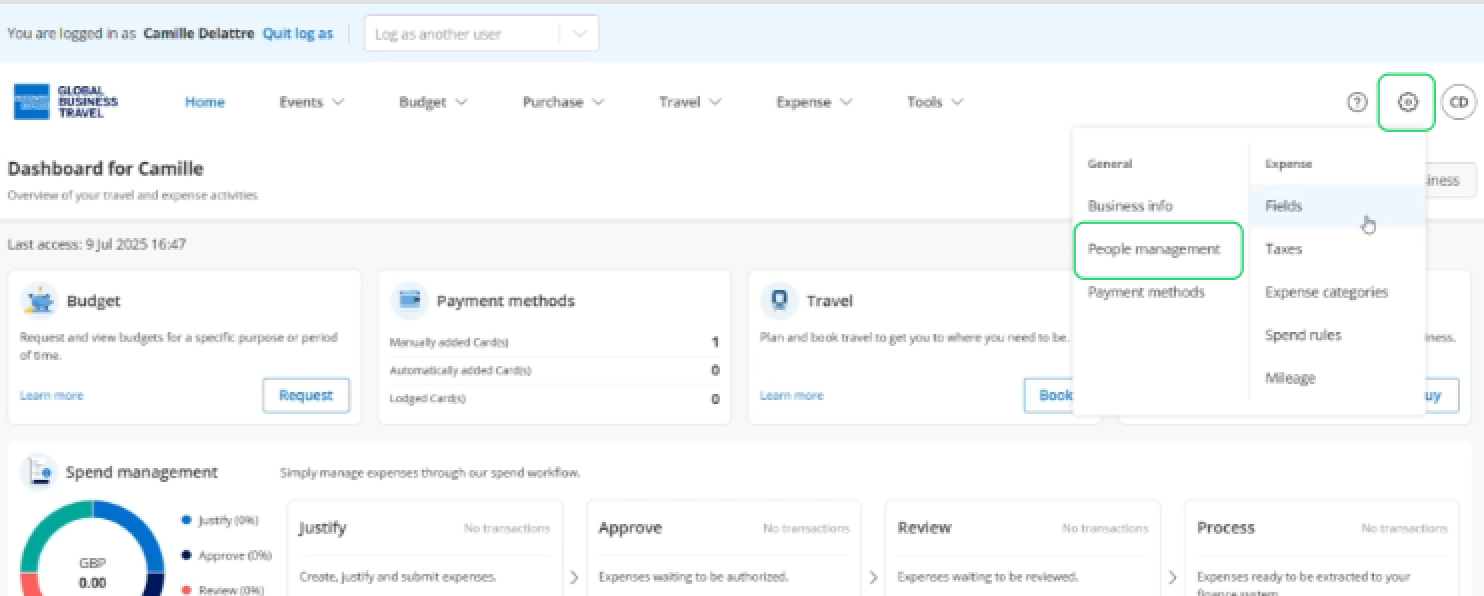
Click Settings, then select 'People management' in the General section.
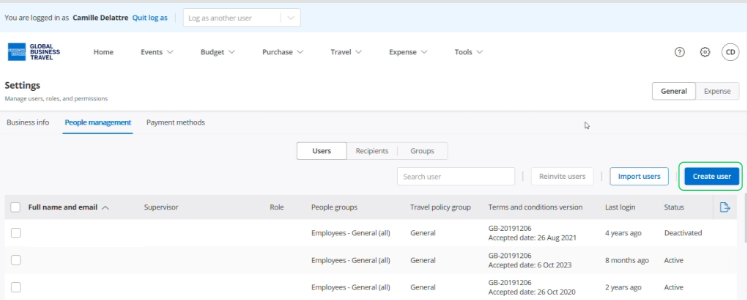
Click 'Create user'.
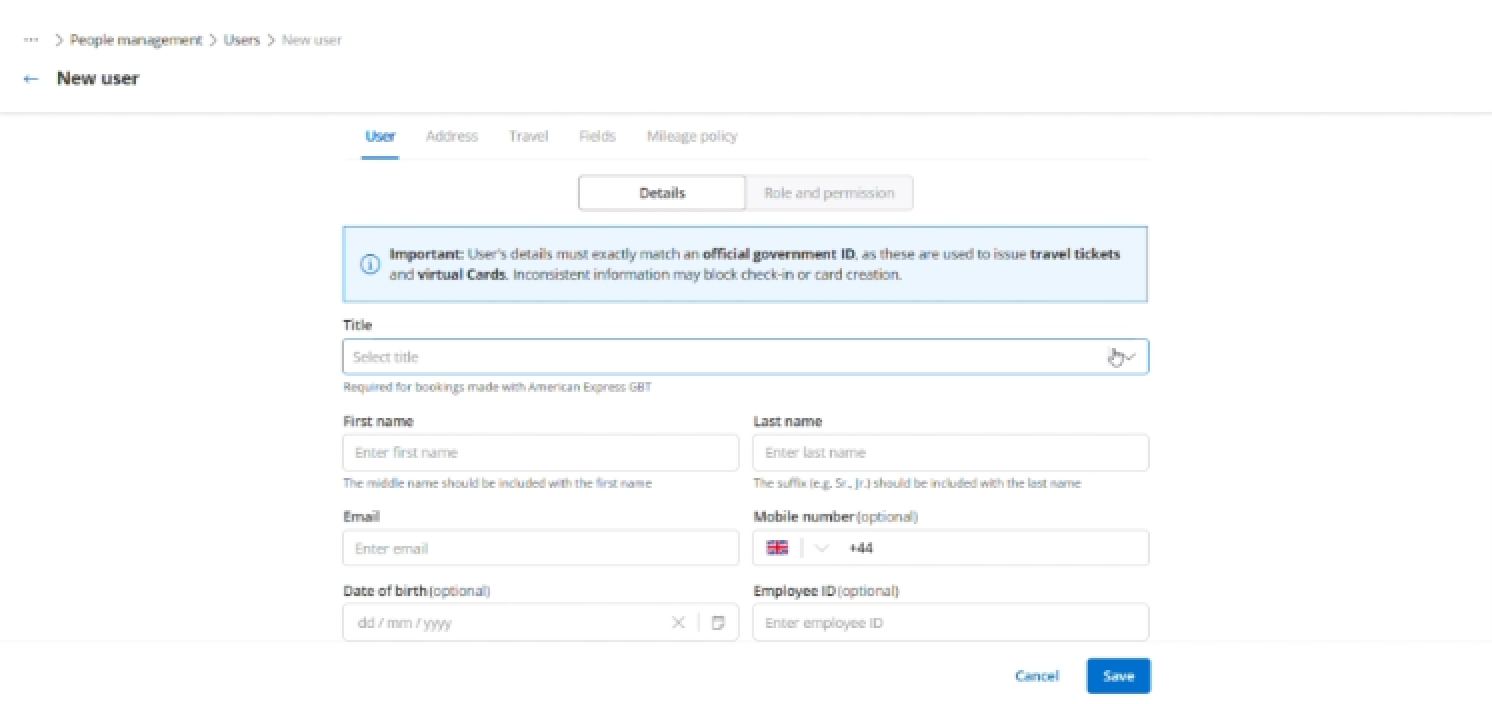
Enter the user information:
User title
First name
Last name
Email (this will also be the login)
Mobile number - Optional (this is required when booking travel)
Date of birth - Optional (this is required when booking travel)
Employee ID - Optional
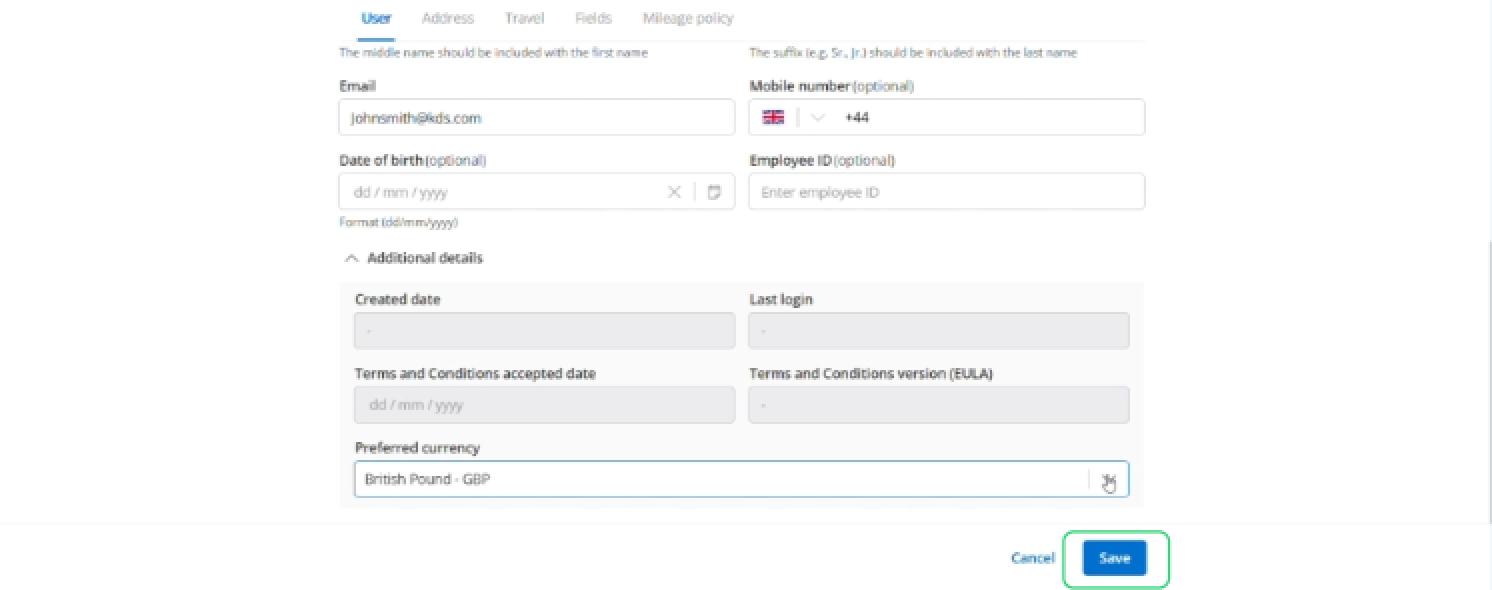
You have the option for additional details if needed, such as preferred currency, the click 'Save'.
Now that you've saved the user, you can assign roles and permissions.
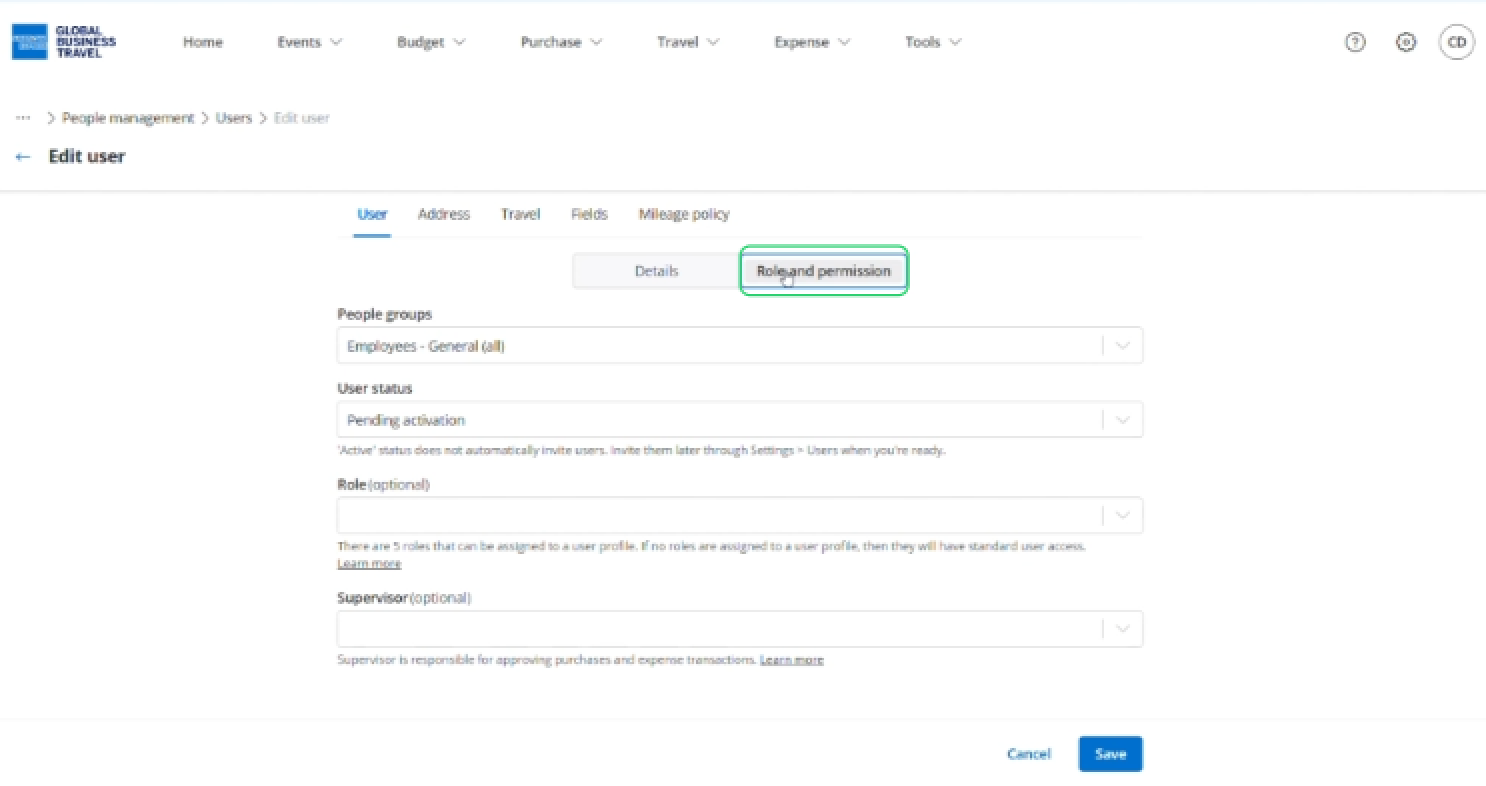
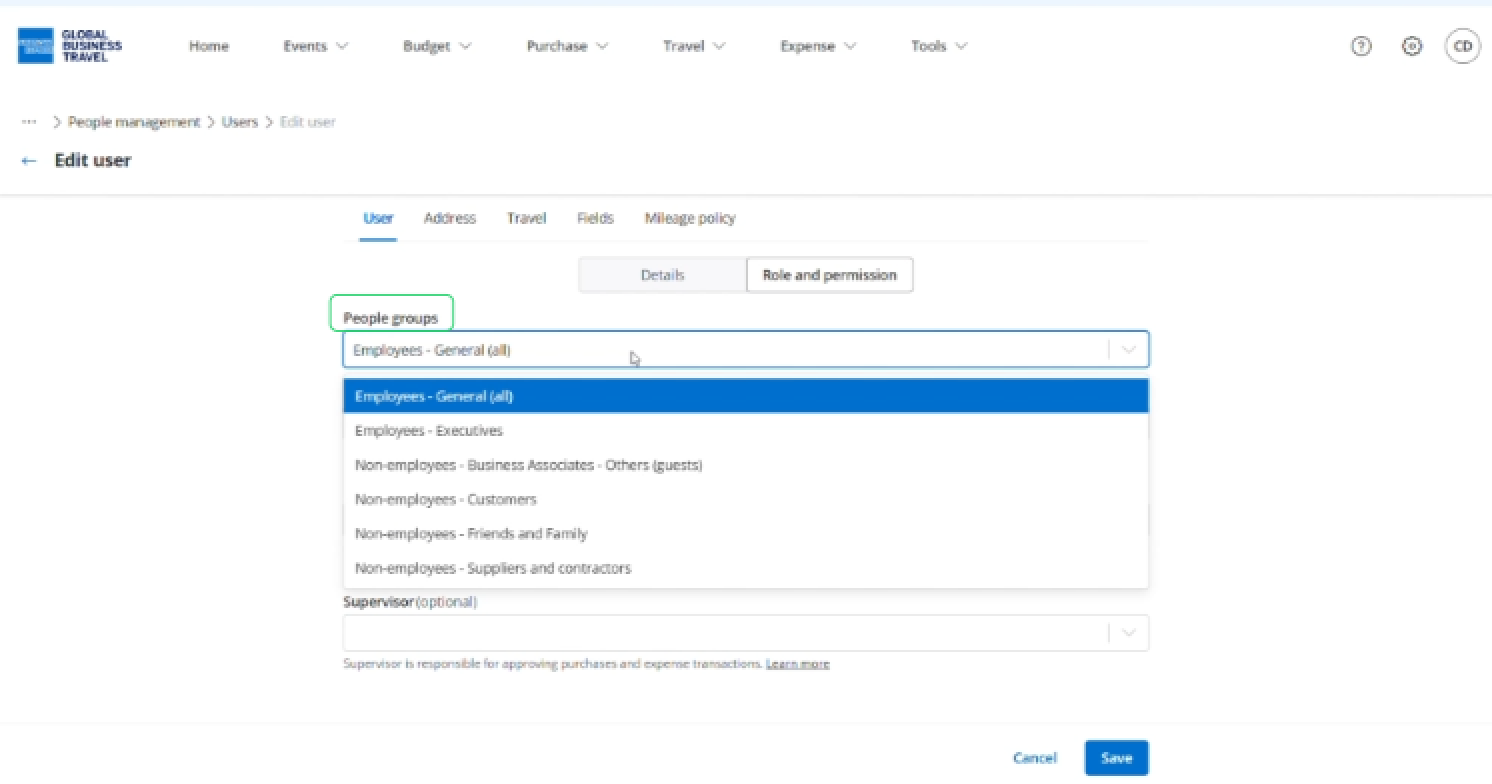
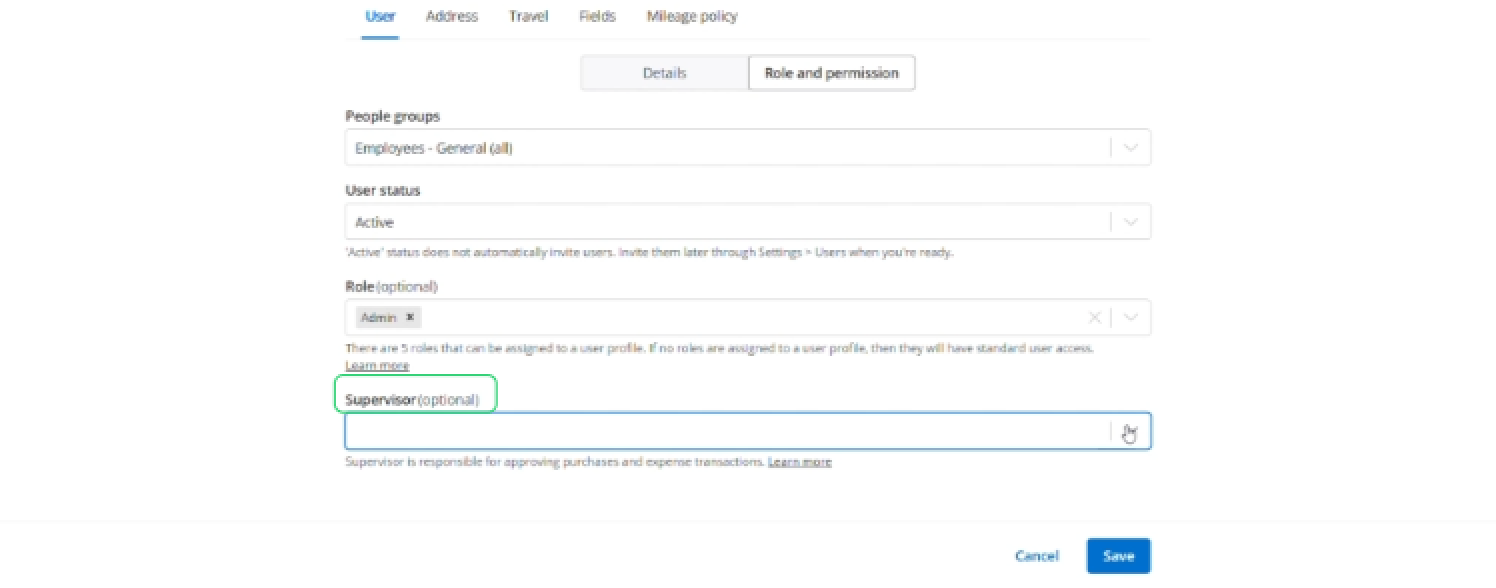
Select people groups this user belongs to. This will be used to define policy and rules.
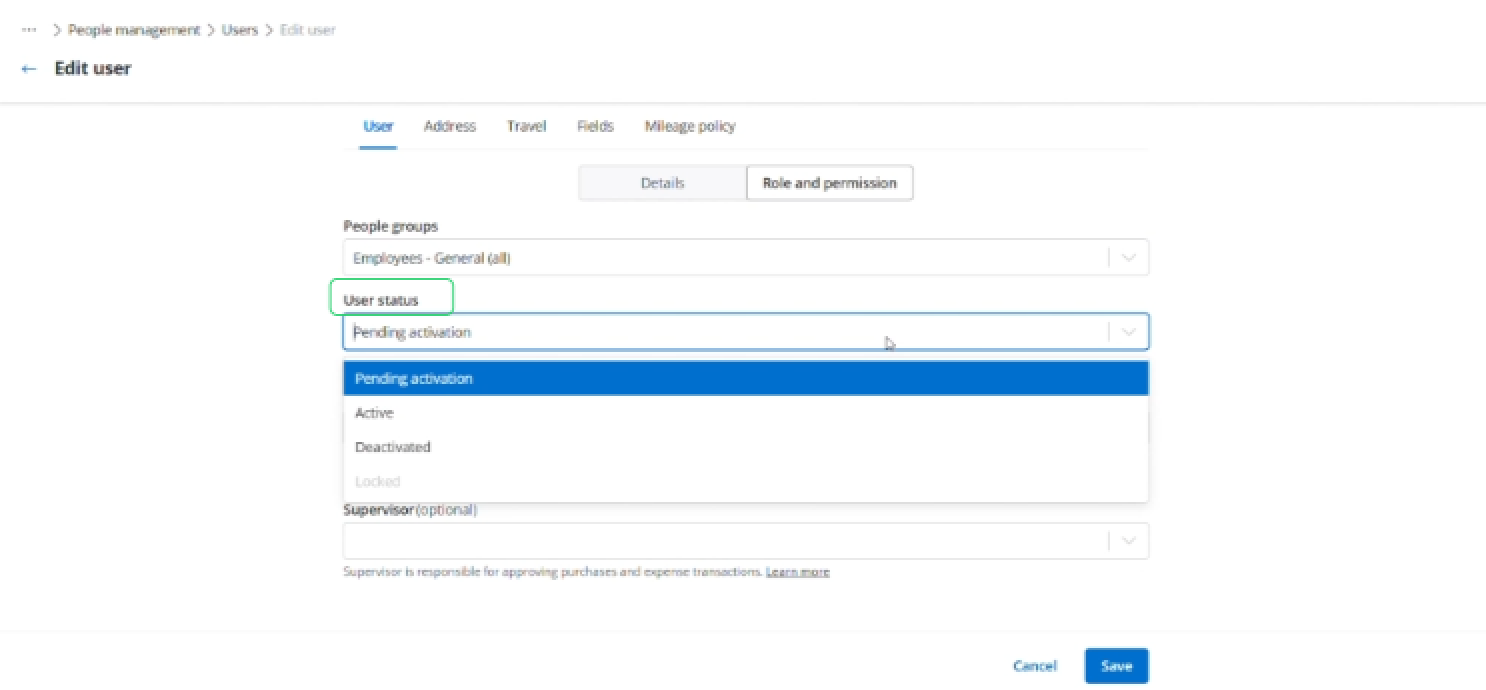
Select user status - it needs to be active to start booking and unlock the full potential of the platform.
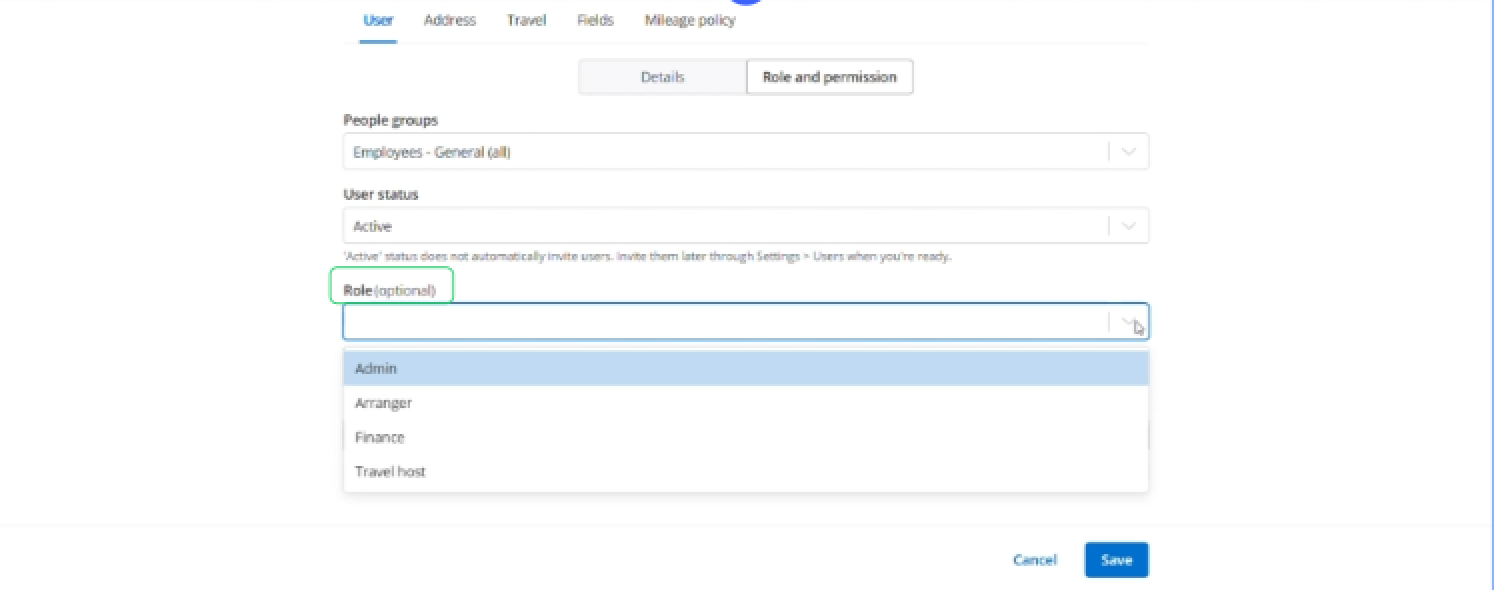
Select a role if this users needs a specific access such as admin or arranger. Learn more about roles.
Define a supervisor for this user's travel and expense approvals.
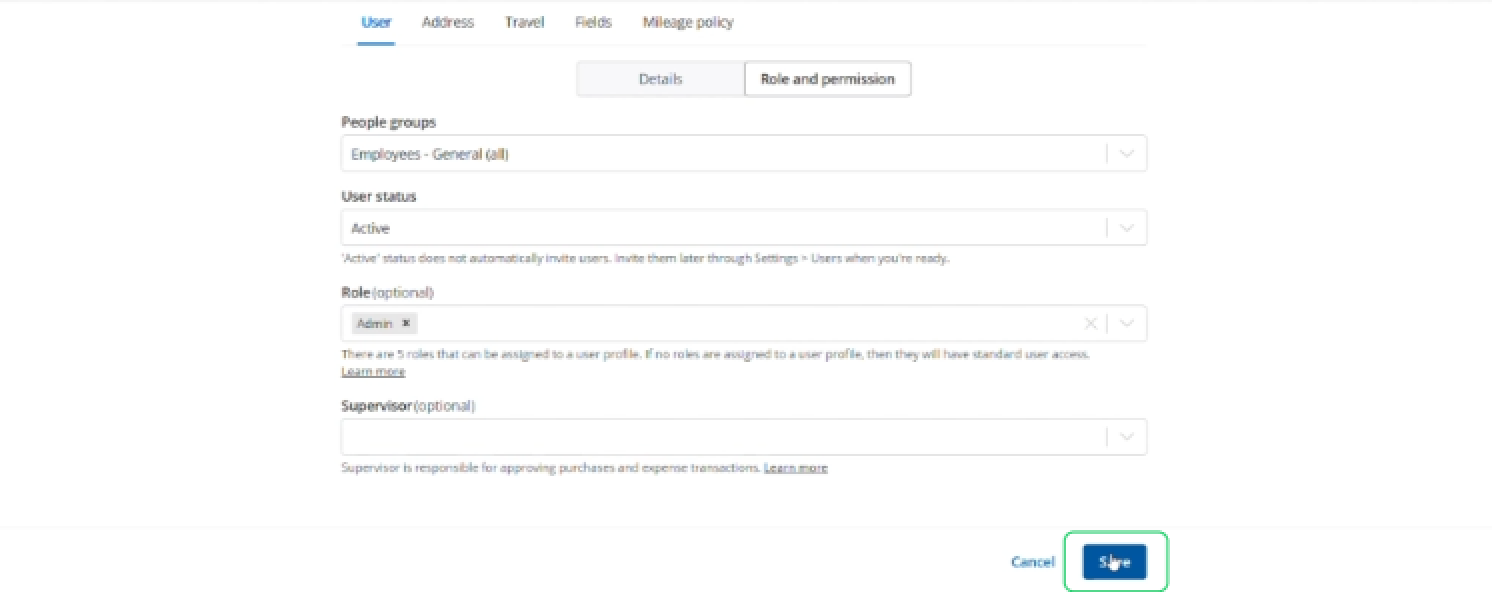
Click 'Save'.
 Tip: If no role is assigned, the user will only be able to see their own transactions/purchases and book, view and manage travel for themselves.
Once the user is created, you can enter more profile information by clicking the tabs next to the User tab. This will be covered in a separate video later in the article.
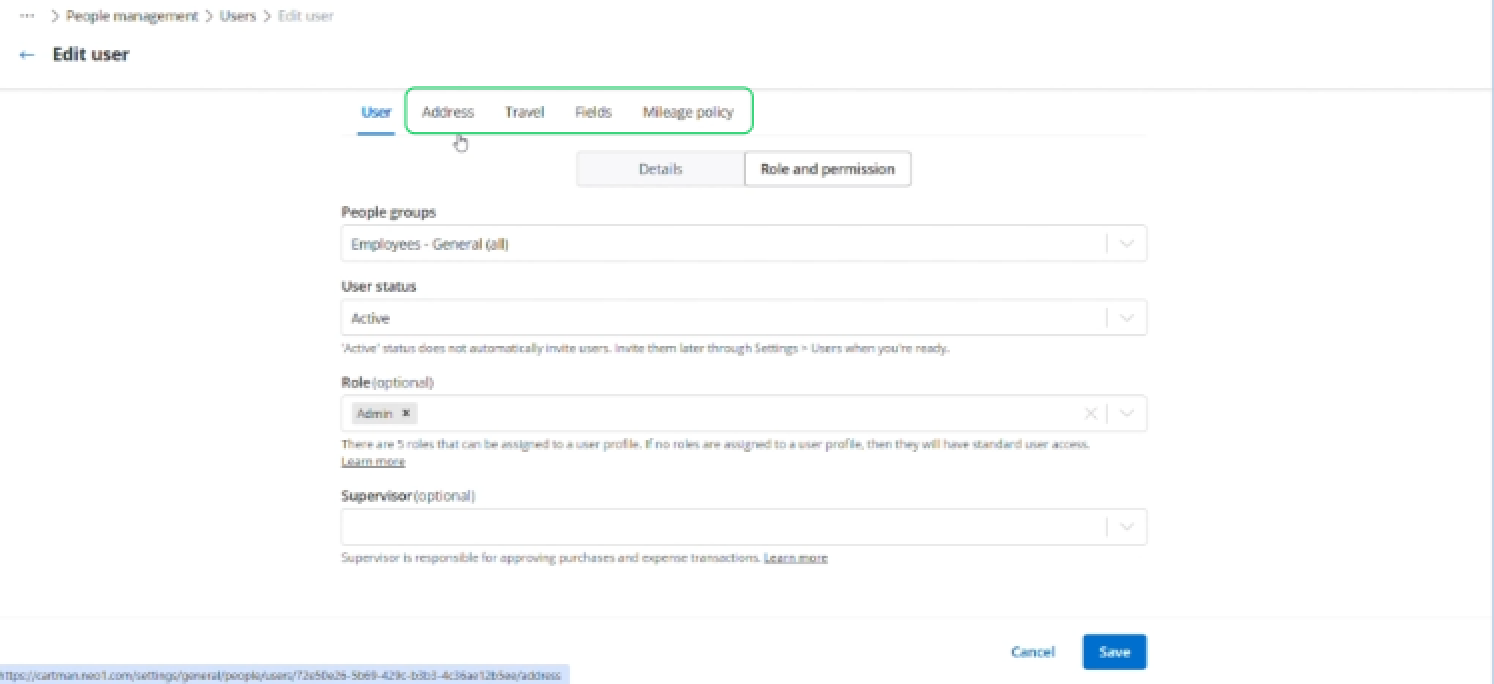
To manage user information and add more details, refer to Managing user profile article.
Bulk import
The bulk import file allows you to quickly create multiple users with all standard user details in one upload.
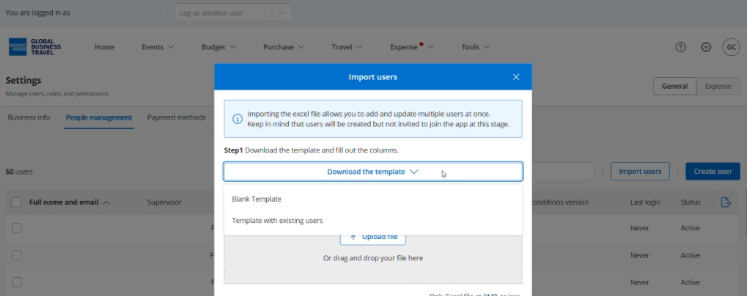
Click 'Import users'
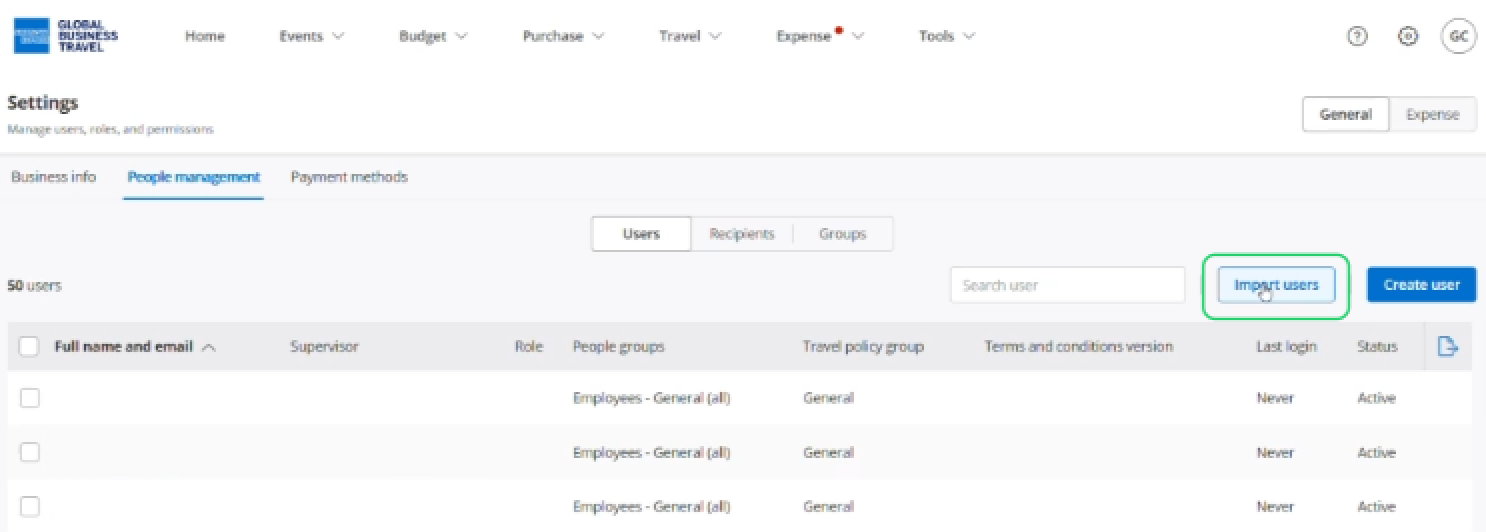
Click Download template to download the user upload file template, and select Blank Template.
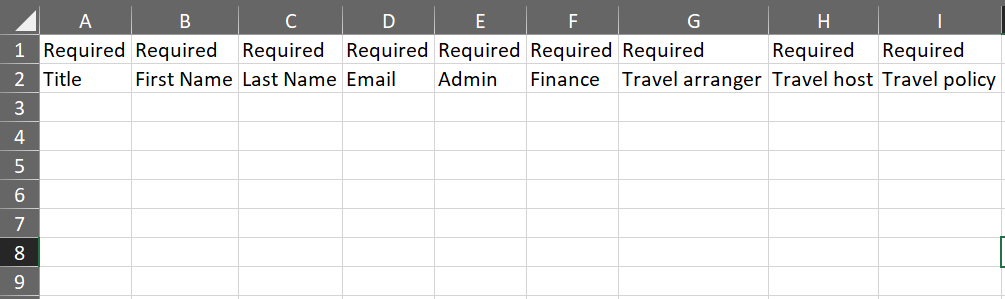
The template will contain both free text and drop-down cells. Make sure to complete all of the required columns.
If the data is available, we highly recommend completing columns J-L, as this information is essential to the travel feature.
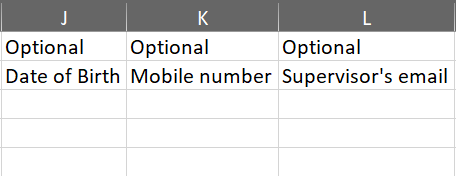
Tip: Mobile number must be entered in +country code format (i.e. +1 for US or +44 for UK -- Example : +17704642549
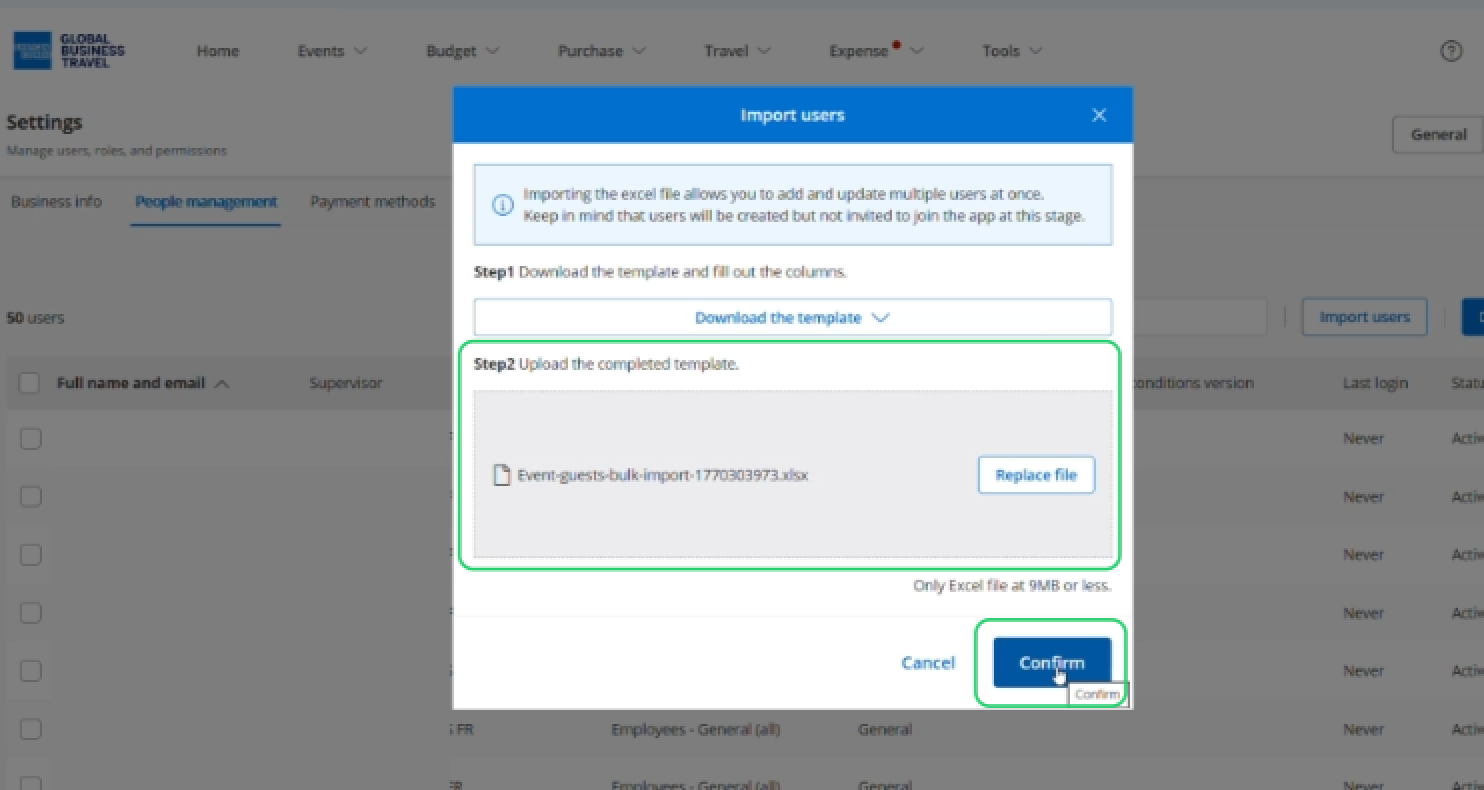
Save the file with your changes and upload it, and click 'Confirm'.
Read the next article: Managing user profiles.