

 Audience: Admin
When creating a user, you can assign a role to define their access and permissions within the platform. There are 5 roles available: Supervisor, Admin, Arranger, Finance, and Travel Host. If no role is assigned, the user will only be able to see their own transactions and purchases, and book, view, and manage travel for themselves.
Assigning User Roles
Click Settings, then select 'People management' in the General section.
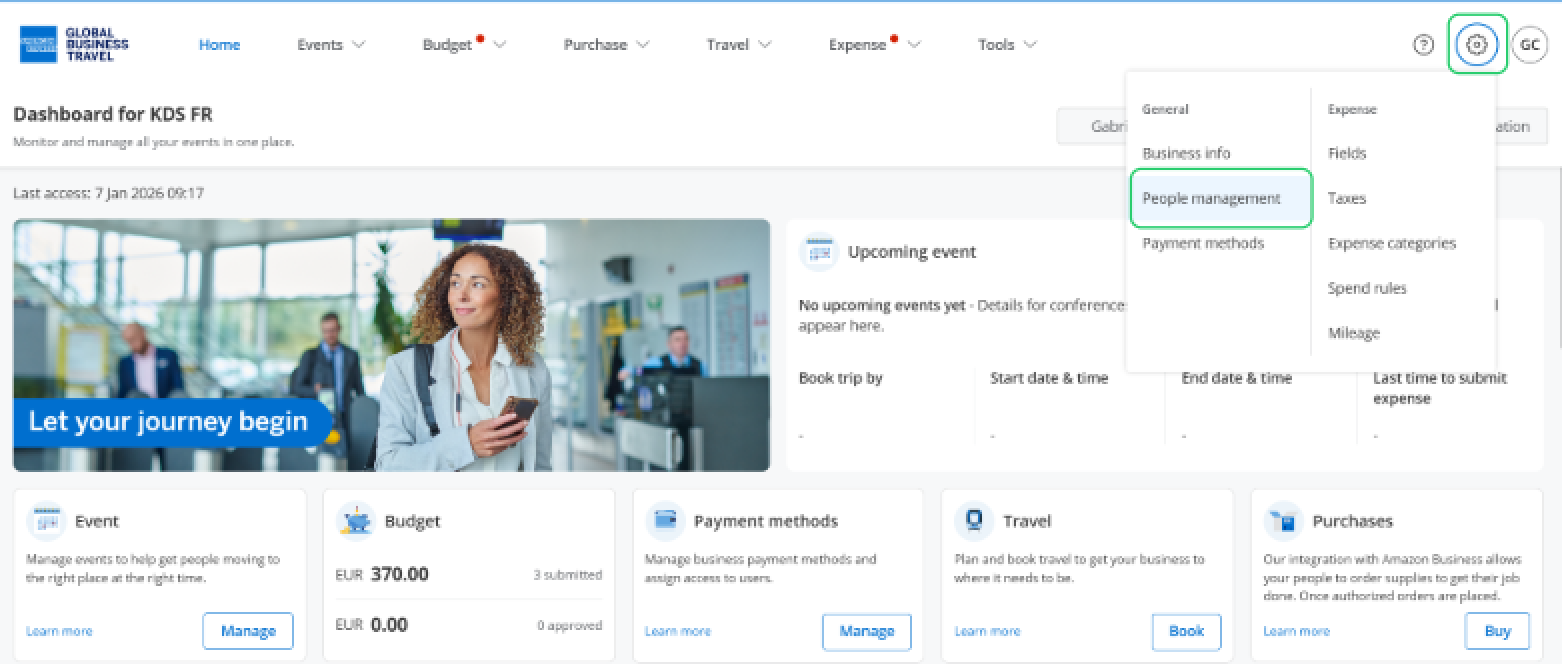
Select the pencil icon on the right hand side.

Under the User section, click 'Role and Permission', then click 'Role' to view all available roles that can be assigned to a user.
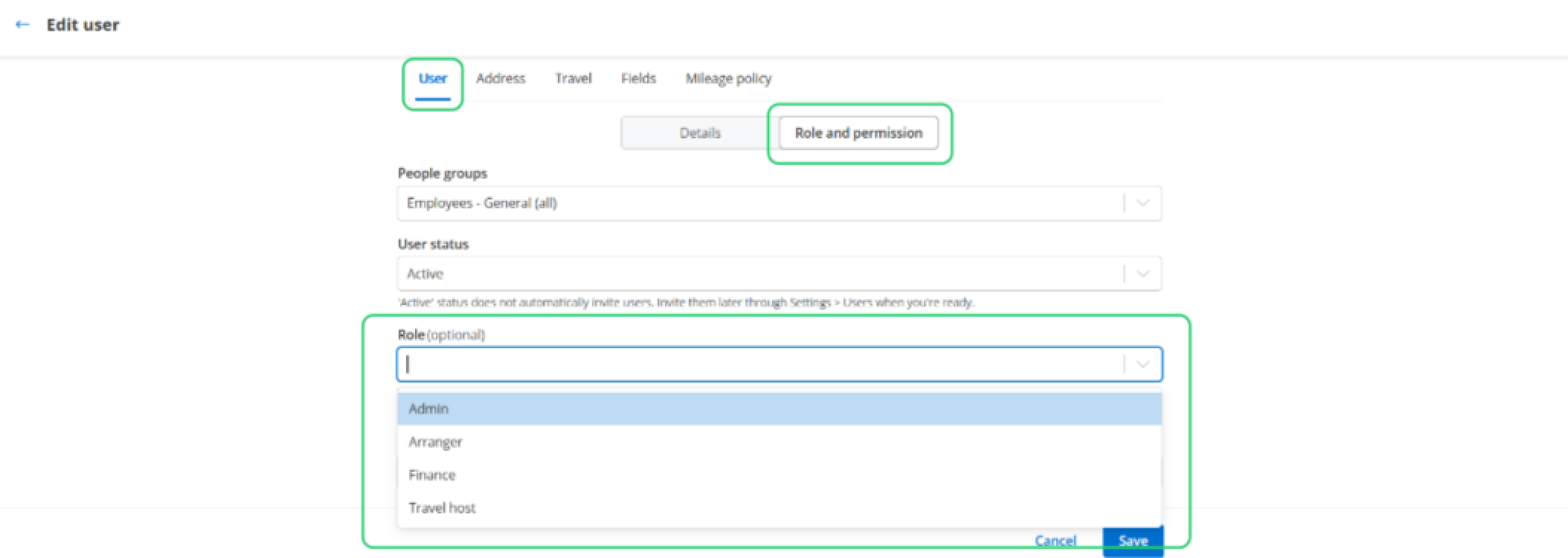
Admin
Super user access, can perform all tasks and have access to the settings tab. Only the Admin role can create new users, manage shared cards and access the company settings. This role can be assigned to multiple users.
Arranger
Users with this role can book travel on behalf of another user.
By default, Admins have the Arranger role.
This role can be assigned to multiple users.
Note: The Arranger cannot create a new user profile or assign a shared company card. They can only book travel for themselves or another user.

Finance
Users with the Finance role gain access to the finance audit approval stage of the workflow, and the reconciliation functionality to process expenses and extract to finance system.
Finance users can also run reports for the whole organization. This role can be assigned to multiple users.

Travel Host
Users with this role can create a guest profile and book travel on their behalf. Travel booked for a guest will not show up in the company reporting (a guest profile is not an employee user profile).
This Guest function is used when travel needs to be booked for non-employees such as spouse/family, clients, job candidates etc.
 Tip: Both the Admin and Arranger roles inherit this function automatically.
Supervisor
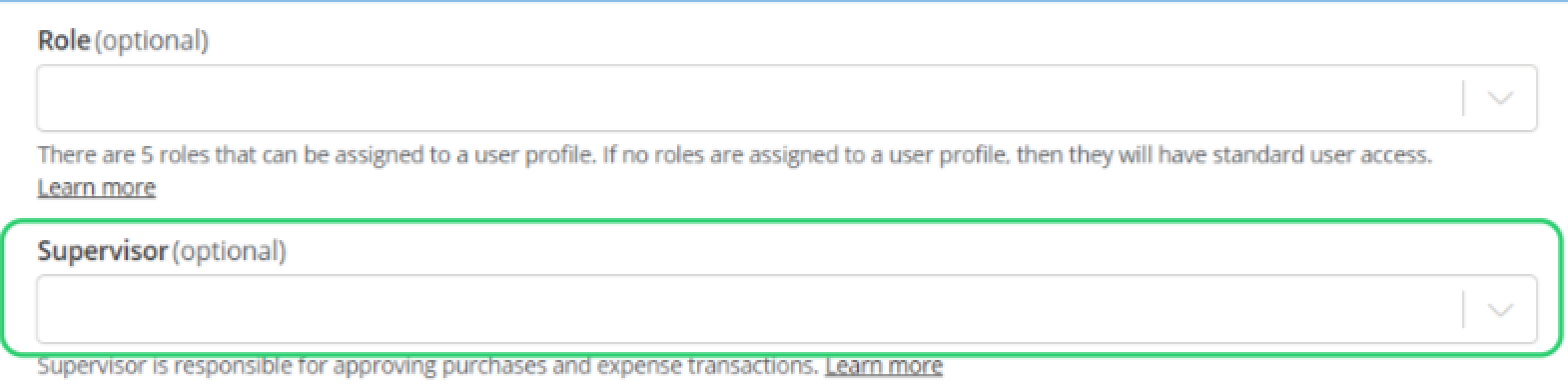
The Supervisor role is a 1:1 assignment — one Supervisor per user. Once assigned, the Supervisor approves:
- Travel booking requests (if pre-trip approval is enabled; otherwise, they receive email notifications only)
- Expense reimbursements
- Amazon Business purchase requests
To assign a Supervisor to a user, you need to edit the user to be supervized and select the Supervisor from the list.
 Next Steps: Now that you are familiar with the user roles, see this guide to setup new users or this guide to manage existing user profiles.
Read the next article: Managing user profiles.