

 Audience: Admin
 When a user should no longer be utilizing the platform, there are two ways to manager their user profile access:
Deactivate a user profile
If the user has previously traveled, then you will not be able to delete the profile (as the profile will be retained for reporting purposes). However, you are encouraged to deactivate the profile to ensure that the traveler is no longer active in GBT systems.
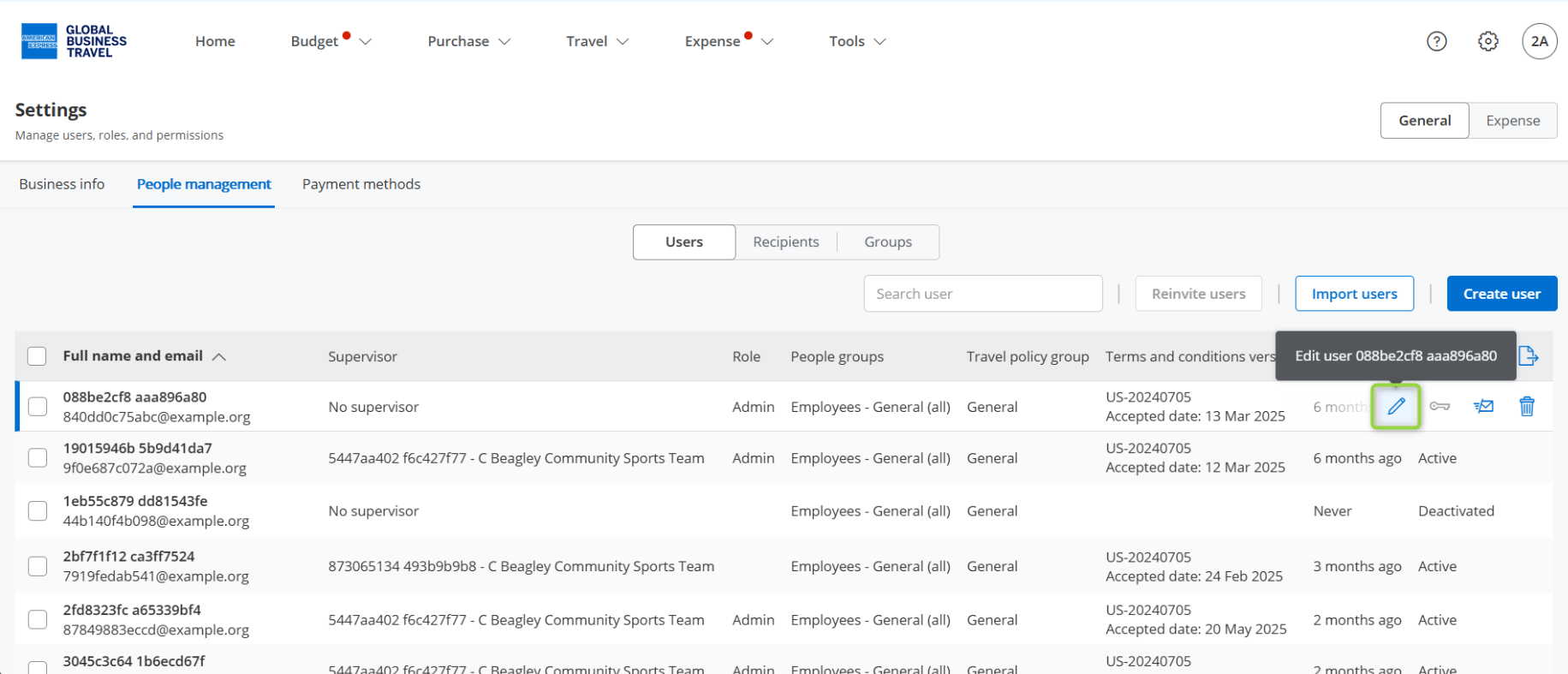
Step 1: Go to Settings > General > People management
Step 2: Hover over the user you wish to remove and click the Edit icon to the far right
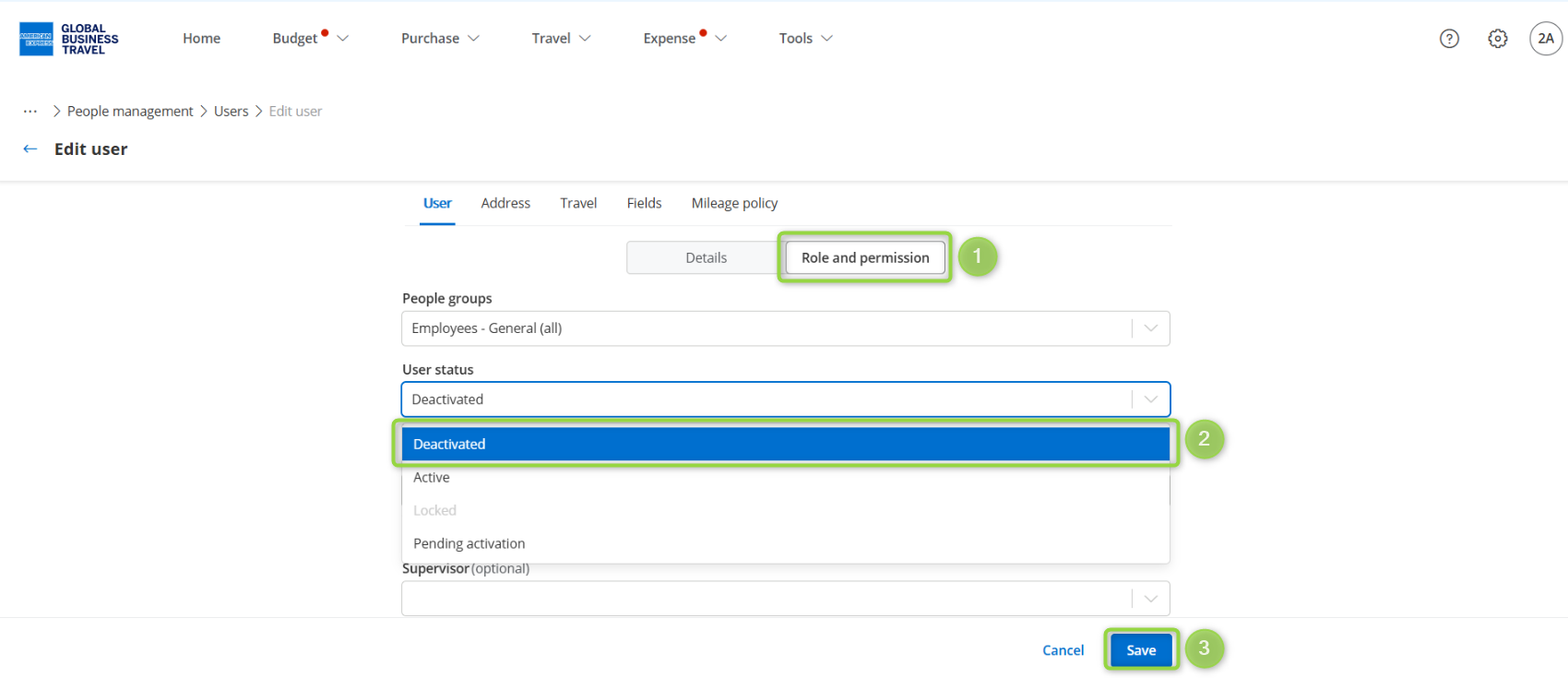
Step 3: Click the Roles and permissions tab.
Step 4: Click the dropdown under User status and select the status Deactivated
Step 5: Click Save at the bottom of the page
Delete a user profile
If the user has never traveled, then you will be able to delete the profile using the guidance below.
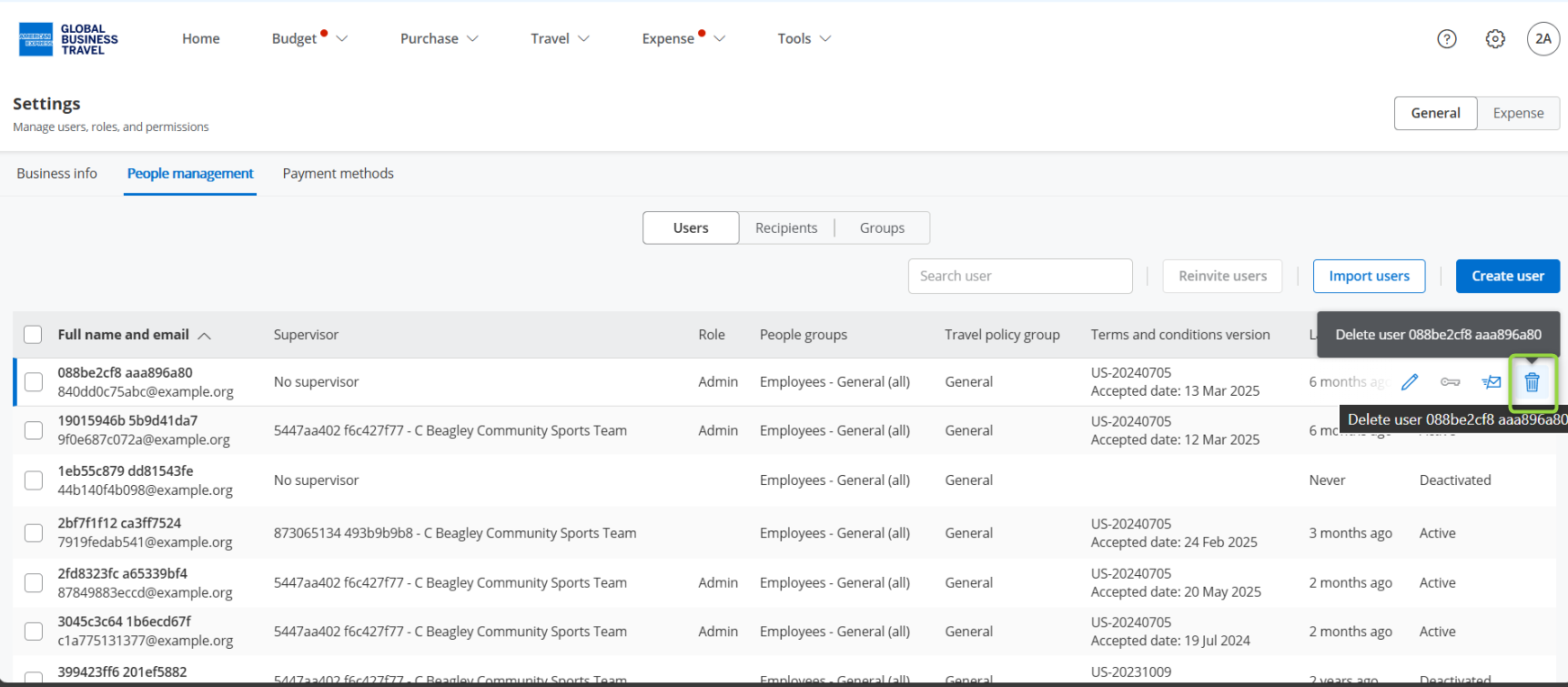
Step 1: Go to Settings > People management
Step 2: Hover over the user you wish to remove and click the Delete icon to the far right
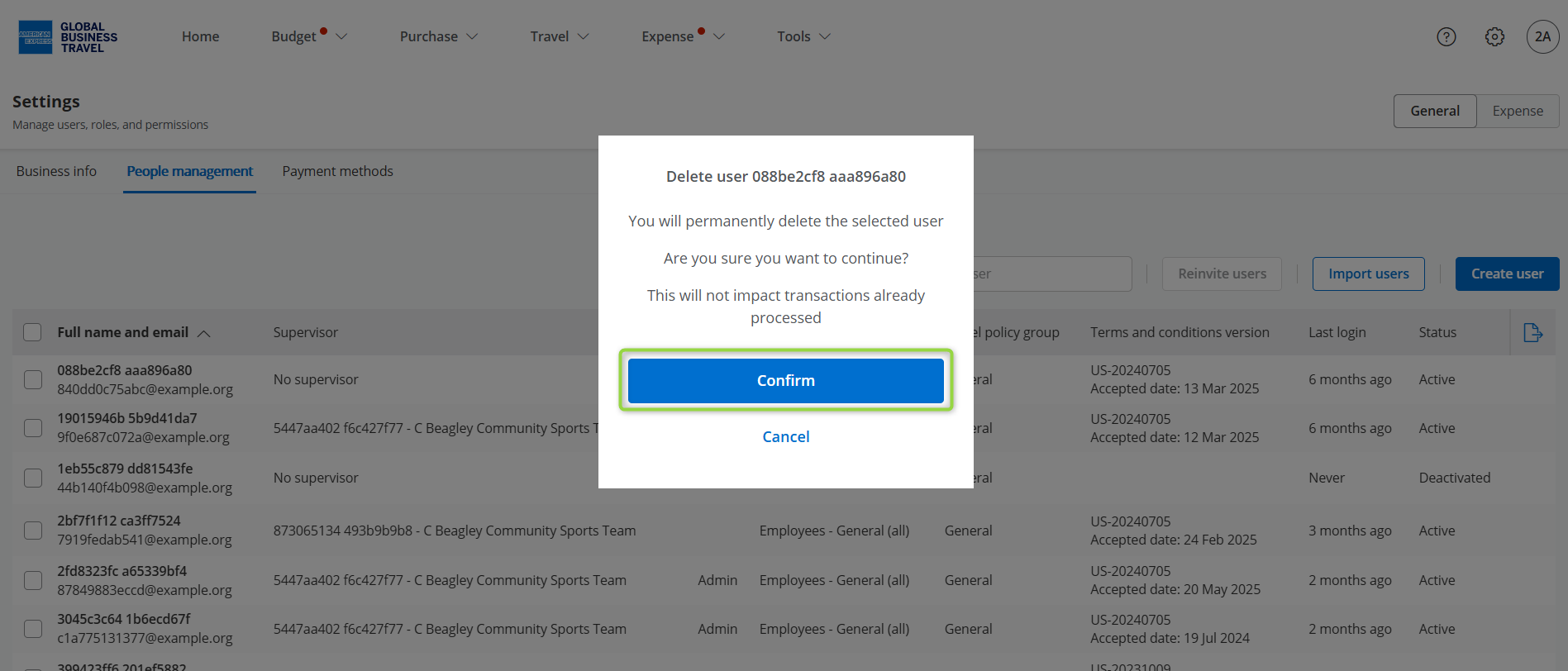
Step 3: Click Confirm
 Tip: If the user has transacted (have travel or spend) then you will not be able to delete them. In that case, please follow instructions (above) for deactivating a user